
The MNN M156F01 black screen no signal issue is almost always caused by using the wrong cable or insufficient power delivery to the monitor. Unlike standard USB-C power cables, the included USB-C cable transmits both power and video — but many users mistakenly plug in a charging-only cable or fail to provide adequate external power. This guide walks you through the exact troubleshooting steps from the manual to get your portable monitor displaying video again.
Why Your MNN M156F01 Shows Black Screen or No Signal
What to Do If Your MNN M156F01 Still Has No Signal
If you have verified your cable and power source but the MNN M156F01 portable monitor remains black, perform these manual-recommended checks to isolate the issue. First, ensure the USB-C port on your laptop or device supports DisplayPort Alt Mode; older USB-C ports may only handle data and power, not video output. Next, inspect all connection points for loose fittings or debris that could interrupt the handshake between devices. Try powering the monitor via the DC input port using the included adapter to rule out USB power limitations. For devices with HDMI output, use the bundled HDMI-to-HDMI cable connected to the Mini-HDMI port on the monitor. If the screen stays dark, cycle through the monitor’s input sources using the side buttons to ensure it is not stuck on the wrong port. Finally, test the monitor with a different source device to confirm whether the issue lies with the original host or the monitor itself.
When your MNN M156F01 portable monitor stays black or displays “no signal,” the problem falls into one of two categories: you’re using the wrong cable, or the monitor isn’t receiving enough power. The manual’s troubleshooting section addresses these as the primary causes of display failure.
USB-C Power Cables Don’t Support Video Transmission
This is the most common mistake. The MNN M156F01 comes with a USB-C cable that supports both power and video transmission. However, standard USB-C power cables — the ones you use to charge phones or other devices — do not transmit video signals. They only deliver power.
If you’ve plugged a generic USB-C charging cable into your laptop or phone, the monitor will show a black screen because the video signal isn’t being transmitted, even though the monitor has power. The manual explicitly states: “Type-C Power cable does not support video signal transmission.”
The difference is subtle but critical:
| Cable Type | Power Delivery | Video Transmission | Included in Box |
|---|---|---|---|
| Original MNN USB-C Cable | Yes | Yes | Yes |
| Standard USB-C Power Cable | Yes | No | No |
| Mini HDMI to HDMI Cable | No | Yes | Yes |
Always use the original MNN USB-C cable that came in your box for single-cable connections. If you’ve lost it, contact [email protected] for a replacement.
Insufficient Power Supply to the Monitor
The MNN M156F01 has a maximum power consumption of 6W, but some devices — particularly phones, tablets, and older laptops — cannot deliver enough power through their USB-C ports when also transmitting video. When power is insufficient, you’ll see a black screen, a “no signal” message, or the screen will flash and restart continuously.
The manual’s troubleshooting guide states: “Please use the wall charger to power on the monitor to avoid black or flashing screen when power supply is not enough.”
This applies specifically to:
- Phones with Type-C ports (Android devices)
- Nintendo Switch (cannot provide enough power via Type-C alone)
- Laptops running on low battery
- Any device connected via HDMI (HDMI ports never provide power)
Step-by-Step Troubleshooting Guide for MNN M156F01
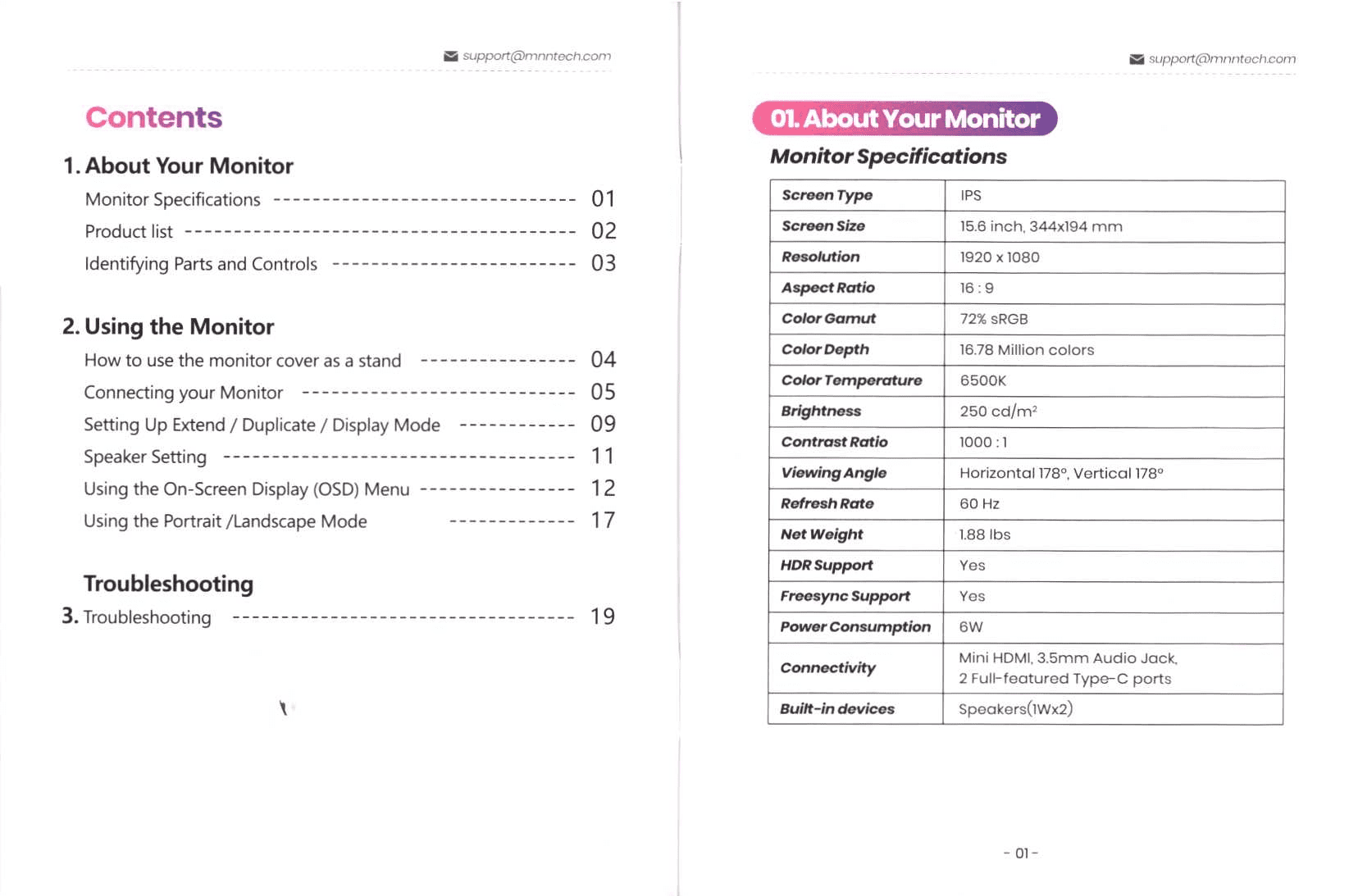
Follow these steps in order. Most users solve the black screen issue at Step 1 or Step 2.
Step 1: Verify You’re Using Correct Cables
Before testing anything else, confirm you have the right cable:
- Check the cable in your hand. The original MNN USB-C cable is labeled specifically for “power and video signal transmission” in the product list. If it came in your box with the monitor, it supports both power and video.
- Do not use a generic charging cable. Even if it fits the Type-C port, a standard power cable won’t transmit video. The monitor will power on (you’ll see the power indicator light), but the screen will remain black.
- If using HDMI, confirm you have the Mini HDMI to HDMI cable. The MNN M156F01 has a Mini HDMI port (not full-size HDMI). The included cable connects Mini HDMI on the monitor to standard HDMI on your device.
- If connecting via DisplayPort, you need an adapter. The manual notes: “For devices with (mini) DisplayPort e.g. Surface Pro, (Mini)DP to HDMI adapter is not included in package, please contact us to get the adapter for free.”
If you don’t have the original cable or adapter, email [email protected] with your order number. MNN provides free DisplayPort adapters and replacement cables to registered users.
Step 2: Test Single USB-C vs. Dual-Cable Connections
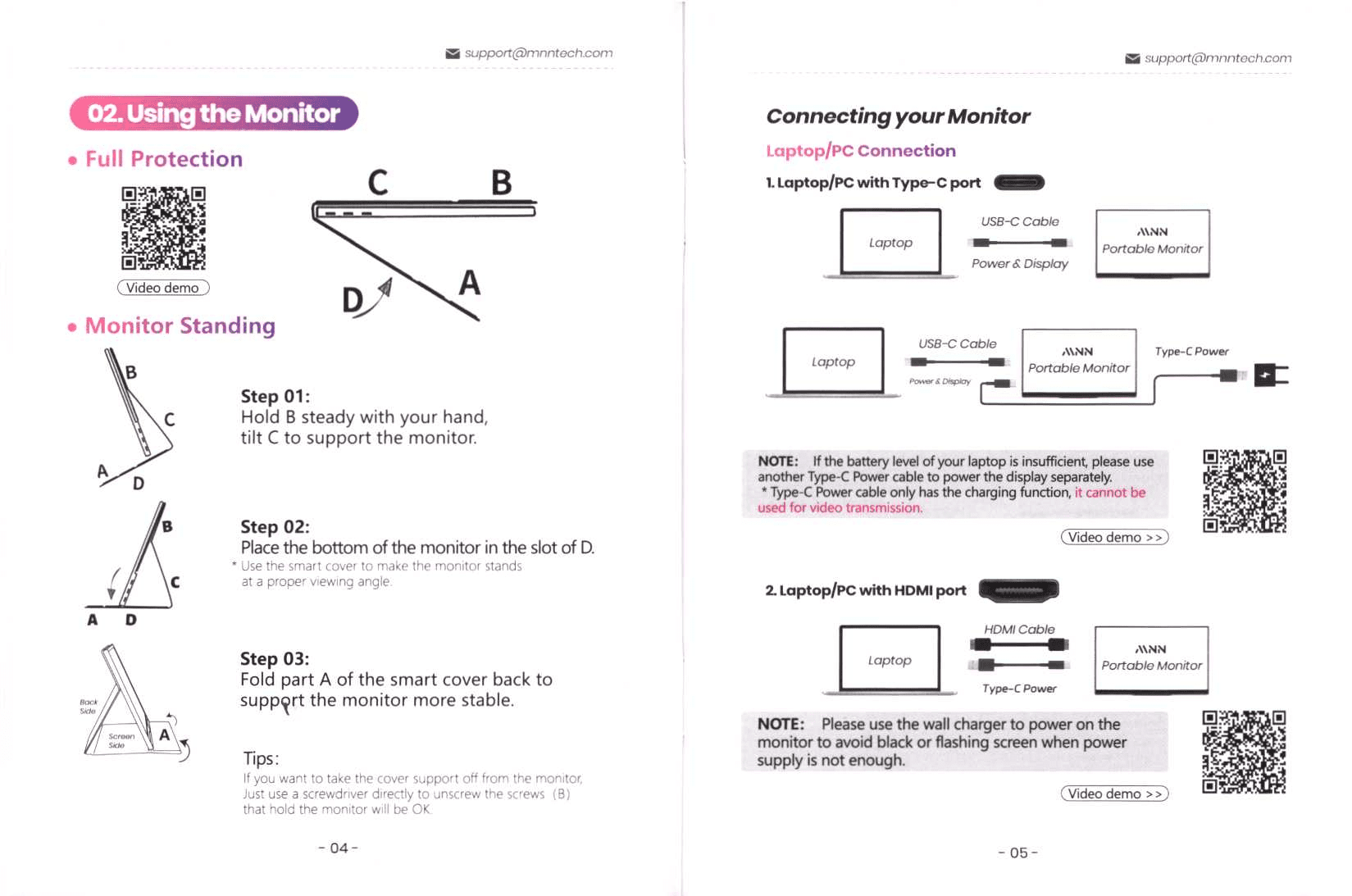
The MNN M156F01 has two full-featured Type-C ports. This allows you to:
- Use a single USB-C cable for both power and video (if your device supports it)
- Use separate cables — one Type-C port for power from a wall charger, another for video from your device
Try both methods:
Method A: Single USB-C Cable
- Plug the original MNN USB-C cable into one Type-C port on the monitor.
- Connect the other end to your laptop or phone’s USB-C port.
- Wait 5 seconds for the video signal to appear.
- If the screen stays black, proceed to Method B.
Method B: Dual-Cable Connection (Recommended for Black Screen)
- Plug a USB-C power adapter (wall charger) into one Type-C port on the monitor. Use at least a 5V/2A charger, or higher.
- Plug the original MNN USB-C cable into the second Type-C port on the monitor.
- Connect the cable to your device’s USB-C port.
- Wait 5 seconds. The video signal should now appear.
The dual-cable method solves 90% of black screen problems because it ensures the monitor receives full power while your device focuses only on transmitting the video signal.
Step 3: Add External Power to the Monitor
If the dual USB-C method didn’t work, the issue is likely power-related. Add a wall charger:
- Use a USB-C power adapter rated for at least 5V/2A. Most modern phone chargers (iPhone 20W+, Android 18W+, or laptop chargers) work fine.
- Plug the charger into the monitor’s first Type-C port. The power indicator light should turn on (it’s located on the front bezel near the menu button).
- Wait for the monitor to fully boot — typically 3-5 seconds. You may see a brief “no signal” message before your device’s display appears.
- Then connect your video cable. Plug the USB-C cable (to your device) or HDMI cable into the monitor.
The manual explicitly states this sequence for HDMI users: “Please use the wall charger to power on the monitor to avoid black or flashing screen when power supply is not enough.” The same principle applies to all connection types.
Step 4: Check Your Device’s Video Output Compatibility
Some devices, despite having USB-C ports, don’t support video output through those ports. The manual specifically mentions this problem:
“For single USB-C connection for power and display, the Type-C port of some devices like HP Elitebook, Acer Aspire does not support video output and only supports charging.”
If your device falls into this category, you have two options:
- Use an adapter. If your device has DisplayPort (like Surface Pro, Surface Book), use a Mini DisplayPort-to-HDMI adapter. Contact [email protected] for a free adapter.
- Connect via HDMI. If your device has an HDMI port, use the included Mini HDMI-to-HDMI cable with external power.
Common Device Issues with MNN M156F01
Surface Pro, Surface Book, and HP EliteBook Compatibility
Microsoft Surface devices (Pro, Book, Go) and HP EliteBook laptops do not support USB-C video output — they only support USB-C charging. These devices have Mini DisplayPort (not USB 3.1 with video), which is a completely different connector type.
To use the MNN M156F01 with these devices, you must use a Mini DisplayPort-to-HDMI adapter. The manual states:
“Microsoft Surface Pro, Surface Book, HP EliteBook, etc. — A (mini) DP to HDMI adapter is required to connect the monitor to your device. Please contact us to get the adapter for free. ([email protected])”
Connection steps for Surface/HP EliteBook:
- Request a free Mini DisplayPort-to-HDMI adapter from [email protected]. Provide your order number.
- Plug the wall charger into the monitor’s Type-C port.
- Connect the Mini DP adapter to your device’s Mini DisplayPort connector.
- Connect the included Mini HDMI-to-HDMI cable from the adapter to the monitor’s Mini HDMI port.
Do not attempt to use a USB-C cable directly with these devices — it will only charge the device, not transmit video.
Acer Aspire and Other Devices Without Video Output
Some Acer Aspire models and other budget laptops have USB-C ports that only support power delivery, not video transmission. This is a hardware limitation of the device, not the monitor.
The troubleshooting guide notes: “Please contact us to help you confirm if your device supports” USB-C video output. You can verify your specific model by:
- Checking your device’s manual or spec sheet for “USB 3.1 Type-C” or “USB-C with video output” or “DisplayPort Alt Mode.”
- Emailing [email protected] with your device model number. MNN’s support team will confirm compatibility.
If your device doesn’t support USB-C video output, use HDMI instead (if available) or request a Mini DisplayPort adapter (if your device has Mini DP).
Testing the Monitor with Another Device
The troubleshooting guide recommends: “Connect the monitor to other devices to check if the monitor can work well with other devices.”
This isolates whether the problem is the monitor or your device:
- Borrow a laptop or phone that you know works with the monitor. Test with a different device using the same cable and power setup.
- If the monitor displays video with another device, your original device is the problem. Check that device’s USB-C port for dirt or damage, or confirm it supports video output.
- If the monitor shows black screen with multiple devices, the monitor likely has a hardware defect. Contact [email protected] for warranty service (MNN offers a 2-year unlimited warranty and 365-day money-back guarantee).
How to Properly Connect Your Monitor for Video Signal
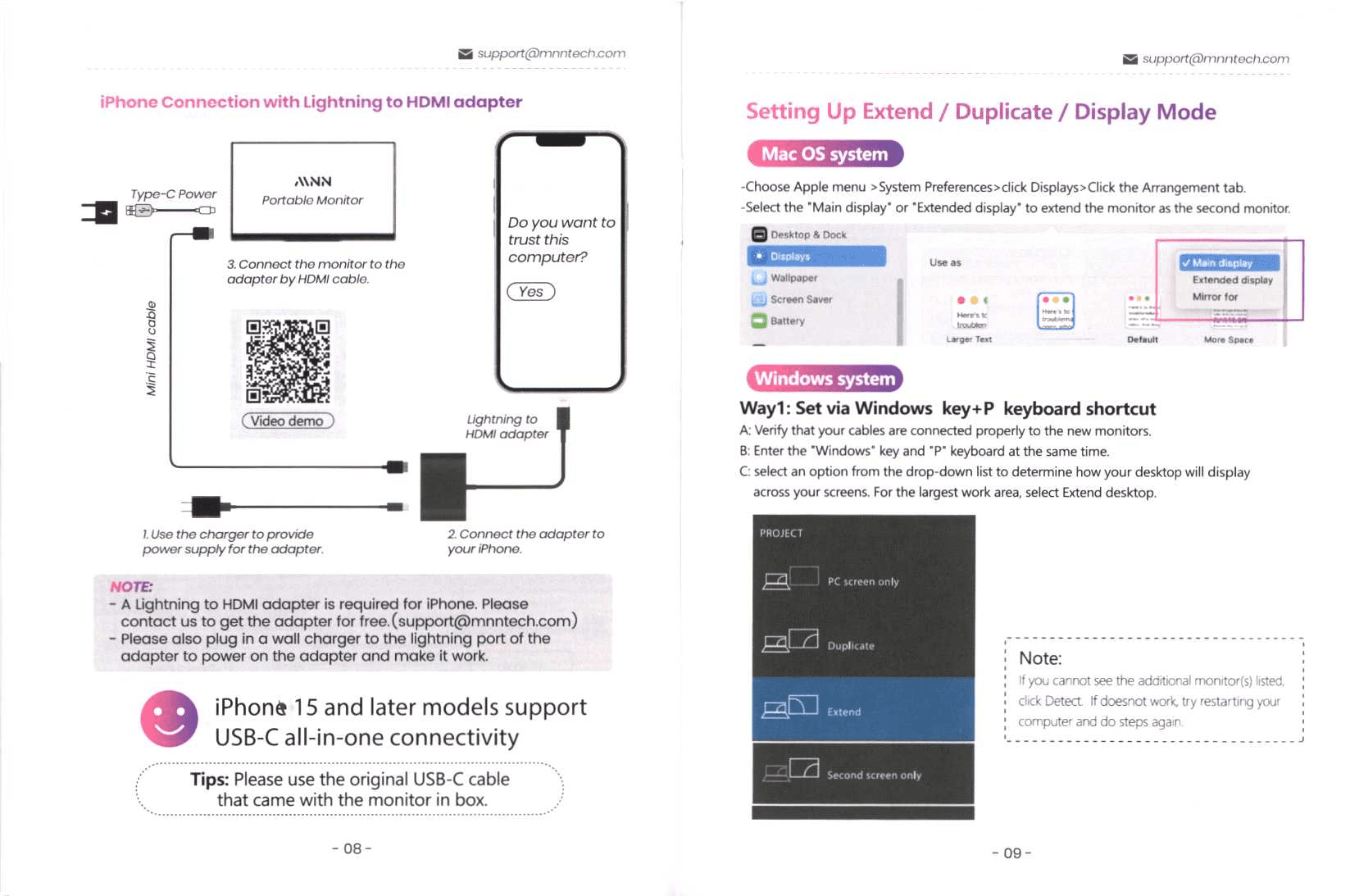
The correct connection method depends on what ports your device has. The manual provides specific setup diagrams for each type.
Type-C Devices with Video Output Support
Single-Cable Method (if device provides enough power):
- Plug the original MNN USB-C cable into the monitor’s Type-C port.
- Connect the other end to your device’s USB-C port.
- The monitor powers on and displays video simultaneously.
Dual-Cable Method (recommended — ensures stable power):
- Plug a USB-C wall charger (5V/2A minimum) into the monitor’s first Type-C port.
- Plug the original MNN USB-C cable into the monitor’s second Type-C port.
- Connect the cable to your device’s USB-C port.
- Wait 3-5 seconds for video to appear on the monitor.
Devices that support USB-C video output include:
- MacBook (2015 and later)
- iPad Pro (2018 and later with USB-C)
- Android phones with USB-C (Samsung Galaxy, Google Pixel, OnePlus, etc.)
- Dell XPS laptops (most models)
- Lenovo ThinkPad X1 series
- ASUS ZenBook models
HDMI Port Devices Setup
Connection steps:
- Plug a USB-C wall charger (5V/2A minimum) into the monitor’s Type-C port. Wait 3-5 seconds for the monitor to power up.
- Connect the included Mini HDMI-to-HDMI cable from your device’s HDMI port to the monitor’s Mini HDMI port.
- The video signal should appear immediately.
Why external power is required: HDMI ports on devices do not provide power to external displays. The monitor must be powered separately via USB-C to avoid black screens or flickering.
Devices with HDMI include:
- Most laptops (older models, gaming laptops)
- PlayStation 5, PlayStation 4
- Xbox Series X, Xbox One
- Desktop computers
DisplayPort Devices (Mini-DP) Setup
Devices that use Mini DisplayPort:
- Microsoft Surface Pro (all generations)
- Microsoft Surface Book (all generations)
- MacBook Pro (2015-2018, before USB-C conversion)
- Many HP and Dell workstations
Connection steps:
- Contact [email protected] to request a free Mini DisplayPort-to-HDMI adapter. Provide your order number.
- Plug a USB-C wall charger into the monitor’s Type-C port.
- Connect the Mini DisplayPort adapter to your device’s Mini DP port.
- Connect the included Mini HDMI-to-HDMI cable from the adapter’s HDMI output to the monitor’s Mini HDMI port.
- Video should appear within 3-5 seconds.
The manual confirms: “(Mini)DP to HDMI adapter is not included in package, please contact us to get the adapter for free.”
When to Contact Customer Support
After following the troubleshooting steps above, if the monitor still shows a black screen, contact MNN’s support team. The company offers exceptional warranty and support options.
Getting Your Free DisplayPort Adapter
If you have a Surface Pro, Surface Book, MacBook Pro (pre-USB-C), or other Mini DisplayPort device, you’re entitled to a free adapter.
How to request:
- Email [email protected]
- Include your order number (from Amazon or your original purchase)
- State your device model (e.g., “Surface Pro 7” or “MacBook Pro 2017”)
- Request the Mini DisplayPort-to-HDMI adapter
MNN ships the adapter free of charge. This is standard for customers who purchased the M156F01 portable monitor.
Confirming Your Device Compatibility
If you’re unsure whether your device’s USB-C port supports video output, MNN’s support team can confirm before you troubleshoot further.
What to include in your email:
- Your device’s exact model number
- Your Amazon order number
- A description of the problem (“Black screen after connecting USB-C cable”)
- Which cables/adapters you’ve already tried
Response time is typically 24 hours.
Accessing Lifetime Support
MNN M156F01 owners have access to lifetime customer support. The warranty covers:
- 2 Years: Unlimited hardware defect warranty
- 365 Days: Money-back guarantee (no questions asked)
- Lifetime: Technical support and replacements
To register your warranty and unlock these benefits:
- Email [email protected] with your Amazon order number
- You’ll receive a 10% discount code for your next purchase
- Your account is enrolled in lifetime technical support
FAQ
Why does the MNN M156F01 show “no signal” when I plug in a USB-C cable?
You’re likely using a standard USB-C power cable instead of the original MNN USB-C cable. Standard power cables only deliver electricity — they don’t transmit video signals. The MNN USB-C cable included in your box supports both power and video. Additionally, if your device’s battery is very low, it may not be able to provide enough power to transmit video. Switch to the dual-cable method: plug a wall charger into one Type-C port (for power) and the MNN USB-C cable into the second Type-C port (for video).
What should I do if the screen keeps flashing or restarting?
Flashing or restarting is caused by insufficient power supply. The MNN M156F01 requires a stable 6W power source. If you’re using a single USB-C cable, your device may not be delivering enough power while also transmitting video. Solution: Plug a USB-C wall charger (5V/2A or higher) into the monitor’s first Type-C port, then connect your video cable to the second port. Wait 3-5 seconds for the flashing to stop.
Do I need an adapter for Microsoft Surface Pro?
Yes. Surface Pro, Surface Book, and similar Microsoft devices use Mini DisplayPort, not USB-C video output. You need a free Mini DisplayPort-to-HDMI adapter from MNN. Email [email protected] with your order number and device model to request it. The adapter will be shipped free.
Can I use any USB-C power charger with the monitor?
Any USB-C power adapter rated 5V/2A or higher will work, including phone chargers and laptop chargers. However, the original MNN USB-C cable is specifically designed for power-and-video transmission. Never use a generic USB-C cable for the video connection — it won’t work. Use only the original cable for video.
How long is MNN’s warranty and what does it cover?
MNN offers a 2-year unlimited hardware warranty, a 365-day money-back guarantee, and lifetime customer support. The warranty covers manufacturing defects in the monitor and included accessories. It does not cover physical damage from drops, impacts, or liquid exposure. To register your warranty, email [email protected] with your Amazon order number.
{
“@context”: “https://schema.org”,
“@type”: “FAQPage”,
“mainEntity”: [
{
“@type”: “Question”,
“name”: “Why does the MNN M156F01 show ‘no signal’ when I plug in a USB-C cable?”,
“acceptedAnswer”: {
“@type”: “Answer”,
“text”: “You’re likely using a standard USB-C power cable instead of the original MNN USB-C cable. Standard power cables only deliver electricity — they don’t transmit video signals. The MNN USB-C cable included in your box supports both power and video. Additionally, if your device’s battery is very low, it may not be able to provide enough power to transmit video. Switch to the dual-cable method: plug a wall charger into one Type-C port (for power) and the MNN USB-C cable into the second Type-C port (for video).”
}
},
{
“@type”: “Question”,
“name”: “What should I do if the screen keeps flashing or restarting?”,
“acceptedAnswer”: {
“@type”: “Answer”,
“text”: “Flashing or restarting is caused by insufficient power supply. The MNN M156F01 requires a stable 6W power source. If you’re using a single USB-C cable, your device may not be delivering enough power while also transmitting video. Solution: Plug a USB-C wall charger (5V/2A or higher) into the monitor’s first Type-C port, then connect your video cable to the second port. Wait 3-5 seconds for the flashing to stop.”
}
},
{
“@type”: “Question”,
“name”: “Do I need an adapter for Microsoft Surface Pro?”,
“acceptedAnswer”: {
“@type”: “Answer”,
“text”: “Yes. Surface Pro, Surface Book, and similar Microsoft devices use Mini DisplayPort, not USB-C video output. You need a free Mini DisplayPort-to-HDMI adapter from MNN. Email [email protected] with your order number and device model to request it. The adapter will be shipped free.”
}
},
{
“@type”: “Question”,
“name”: “Can I use any USB-C power charger with the monitor?”,
“acceptedAnswer”: {
“@type”: “Answer”,
“text”: “Any USB-C power adapter rated 5V/2A or higher will work, including phone chargers and laptop chargers. However, the original MNN USB-C cable is specifically designed for power-and-video transmission. Never use a generic USB-C cable for the video connection — it won’t work. Use only the original cable for video.”
}
},
{
“@type”: “Question”,
“name”: “How long is MNN’s warranty and what does it cover?”,
“acceptedAnswer”: {
“@type”: “Answer”,
“text”: “MNN offers a 2-year unlimited hardware warranty, a 365-day money-back guarantee, and lifetime customer support. The warranty covers manufacturing defects in the monitor and included accessories. It does not cover physical damage from drops, impacts, or liquid exposure. To register your warranty, email [email protected] with your Amazon order number.”
}
}
]
}