
If your MNN M156F01 monitor keeps flashing and restarting, the problem is almost always insufficient power supply to the display. The M156F01 consumes 6W of power, and many USB devices—including phones, tablets, and some laptops—cannot deliver enough current through a single USB-C cable to keep the monitor stable. This guide walks you through exactly why the flashing happens and how to fix it permanently with the right power setup.
Why Does the MNN M156F01 Keep Flashing and Restarting?
Root Cause: Insufficient Power Supply to Monitor
Flashing or continuous restarting is usually caused by not enough power supply, according to the official MNN troubleshooting documentation. The M156F01 is a 1920×1080 portable monitor with an IPS panel that requires stable, consistent power delivery. When your source device cannot provide enough current through its USB-C port, the monitor’s power level fluctuates below the minimum threshold needed to run the display circuitry. This causes the monitor to cut out, reset, and try to power back on repeatedly—creating that annoying flashing cycle.
The monitor doesn’t crash because it’s defective. It crashes because the power is starving it. Once you understand this, the fix becomes straightforward.
How Devices Provide Power Through USB-C
Modern USB-C cables can carry both power and video signals simultaneously. However, not all USB-C ports on your devices are equally capable. A laptop with a weak USB-C power delivery system might only output 15W total, which needs to be split between charging the laptop itself and powering external displays. A phone typically reserves USB power for charging and has very little headroom for peripheral devices. A Nintendo Switch can provide video through USB-C but was never designed to power external monitors.
When you plug the M156F01 into a device with insufficient USB-C power delivery, the monitor receives less current than it needs. The power supply inside the monitor’s housing tries to regulate the voltage, but if the input current drops too low, the entire system crashes and reboots—which is why you see the flashing effect.
Power Requirements for 1920×1080 Portable Display
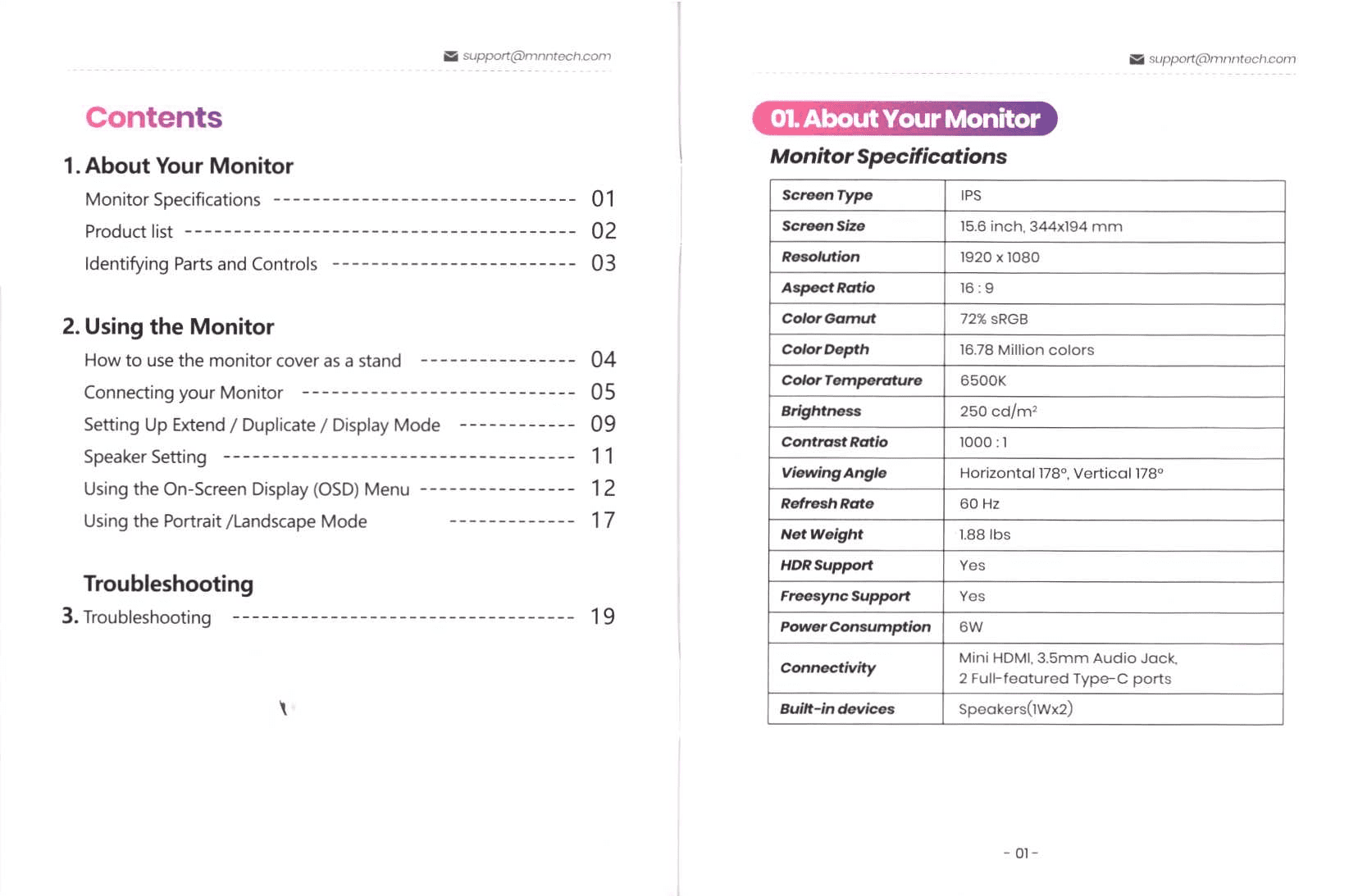
The MNN M156F01 specifications show:
| Specification | Value |
|---|---|
| Screen Resolution | 1920 x 1080 (Full HD) |
| Screen Size | 15.6 inches |
| Power Consumption | 6W |
| Brightness Range | 0–250 cd/m³ |
| Refresh Rate | 60 Hz |
The 6W power requirement is a minimum under ideal conditions with low brightness. When you run the monitor at high brightness (which the manual notes as up to 250 cd/m³), power draw increases. Phones especially cannot sustain this load through USB-C without an external charger backing up the system.
Which Devices Can’t Provide Enough Power for M156F01
Laptops with Limited USB-C Power Output
Not all laptops are equal. A MacBook Pro with Thunderbolt 3/4 ports can deliver substantial USB Power Delivery (up to 96W), but entry-level laptops, ultrabooks, and budget models often have USB-C ports rated for only 15W to 30W output. These machines need that power for themselves first.
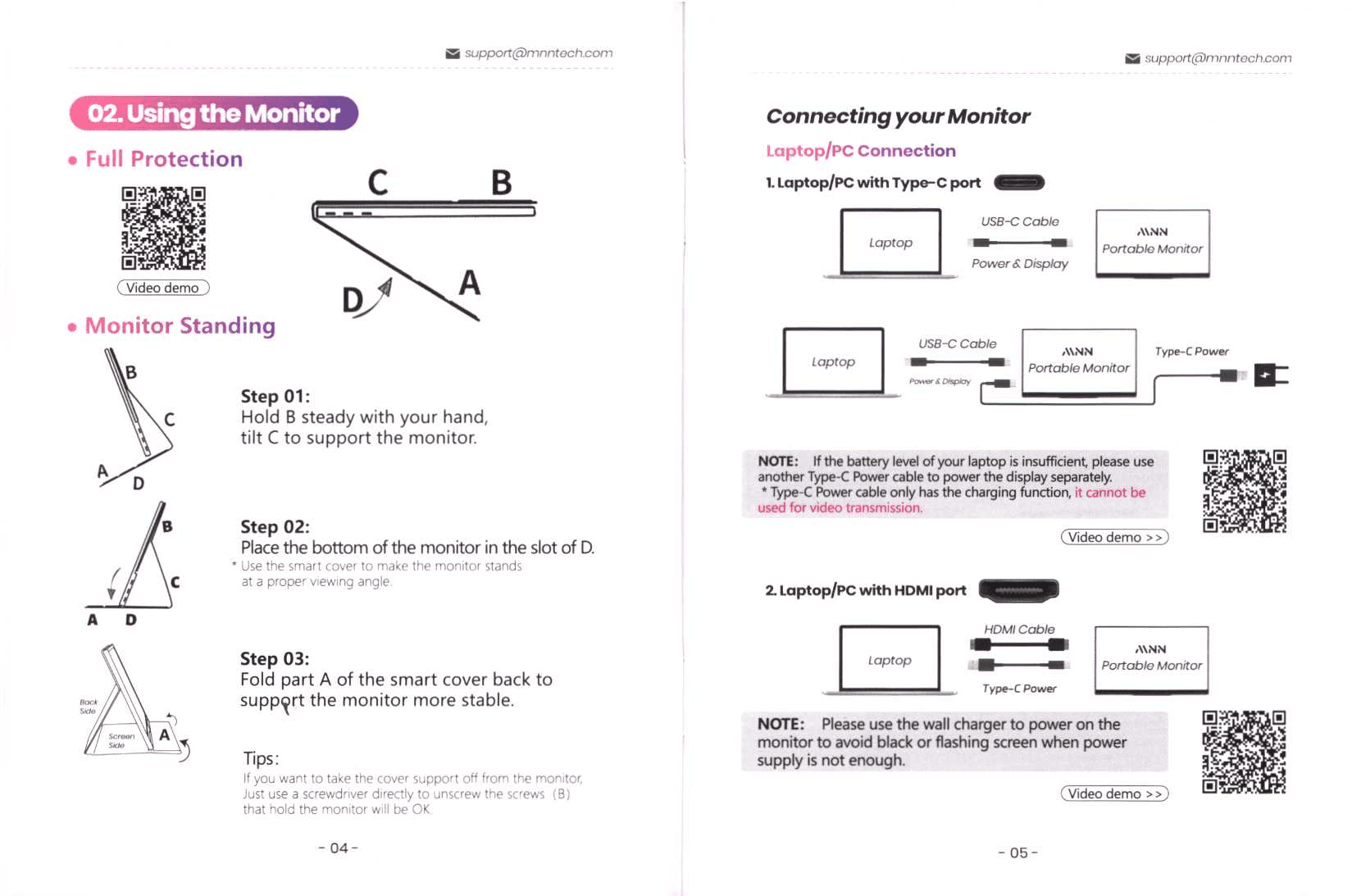
The manual specifically notes: “If the battery level of your laptop is insufficient, please use another Type-C Power cable to power the display separately.” This is the key warning. When your laptop is running on battery and simultaneously powering an external monitor, it cannot do both adequately through one cable. You must add a dedicated wall charger to the monitor’s second USB-C port.
Specific laptop models mentioned in the troubleshooting section—HP EliteBook and Acer Aspire—have USB-C ports that support charging only, not video output. Even if power were sufficient, these devices require HDMI or DisplayPort adapters, not USB-C video.
Smartphones Powering the Monitor
Smartphones are the most common culprit for M156F01 flashing issues. The manual states directly: “Phones may not be able to provide enough power supply for monitor with high brightness.” Android phones with USB-C can technically transmit video through the right cable, but their power delivery is minimal—typically 5W or less, which is below the monitor’s 6W requirement even before accounting for the phone’s own charging needs.
The official solution is clear: “Please plug in wall charger to Type-C port to power on the monitor, then plug in USB-C cable connected to phone to another Type-C port.” The M156F01 has two full-featured USB-C ports for exactly this reason—one for power, one for video/data.
Gaming Consoles and Nintendo Switch
The Nintendo Switch presents a specific case. The console supports USB-C video output, but the manual contains this critical warning: “Switch cannot provide enough power supply for monitor. Please use Switch original PD charger and plug it into the Type-C port monitor. Or it may not work if using other chargers.”
This means you cannot connect a Switch to the M156F01 with only the single USB-C cable that came with the monitor. You must simultaneously connect the Switch’s original USB-C power charger to the monitor’s other USB-C port. Using third-party chargers will not work reliably because the Switch’s power negotiation may fail.
PlayStation 5, PlayStation 4, and Xbox systems use HDMI, so they require: an HDMI cable from the console to the monitor’s Mini HDMI port, plus a wall charger connected to the monitor’s USB-C port for power. These consoles have enough power to run video-only through HDMI, but cannot power the monitor independently.
The Complete Power Solution for MNN M156F01
Using Wall Charger as Dedicated Power Source
The most reliable fix for flashing and restarting is to plug a wall charger directly into one of the monitor’s USB-C ports. This removes the device from the power equation entirely. The monitor now draws power from the wall outlet instead of relying on your laptop or phone battery.
The manual repeatedly prescribes this solution across multiple device types: “Please use the wall charger to power on the monitor to avoid black or flashing screen when power supply is not enough.” This phrase appears for laptop connections with HDMI, DisplayPort adapters, PlayStation consoles, and phone connections.
You don’t need a special charger. Any USB-C Power Delivery wall charger rated for at least 9V/2A (18W total) will work. Many modern phone chargers, laptop chargers, and portable power banks with USB-C output meet this requirement. The important part is that it is a dedicated power source—not the same device providing both video and power.
Dual Port Setup: Power + Video Connection
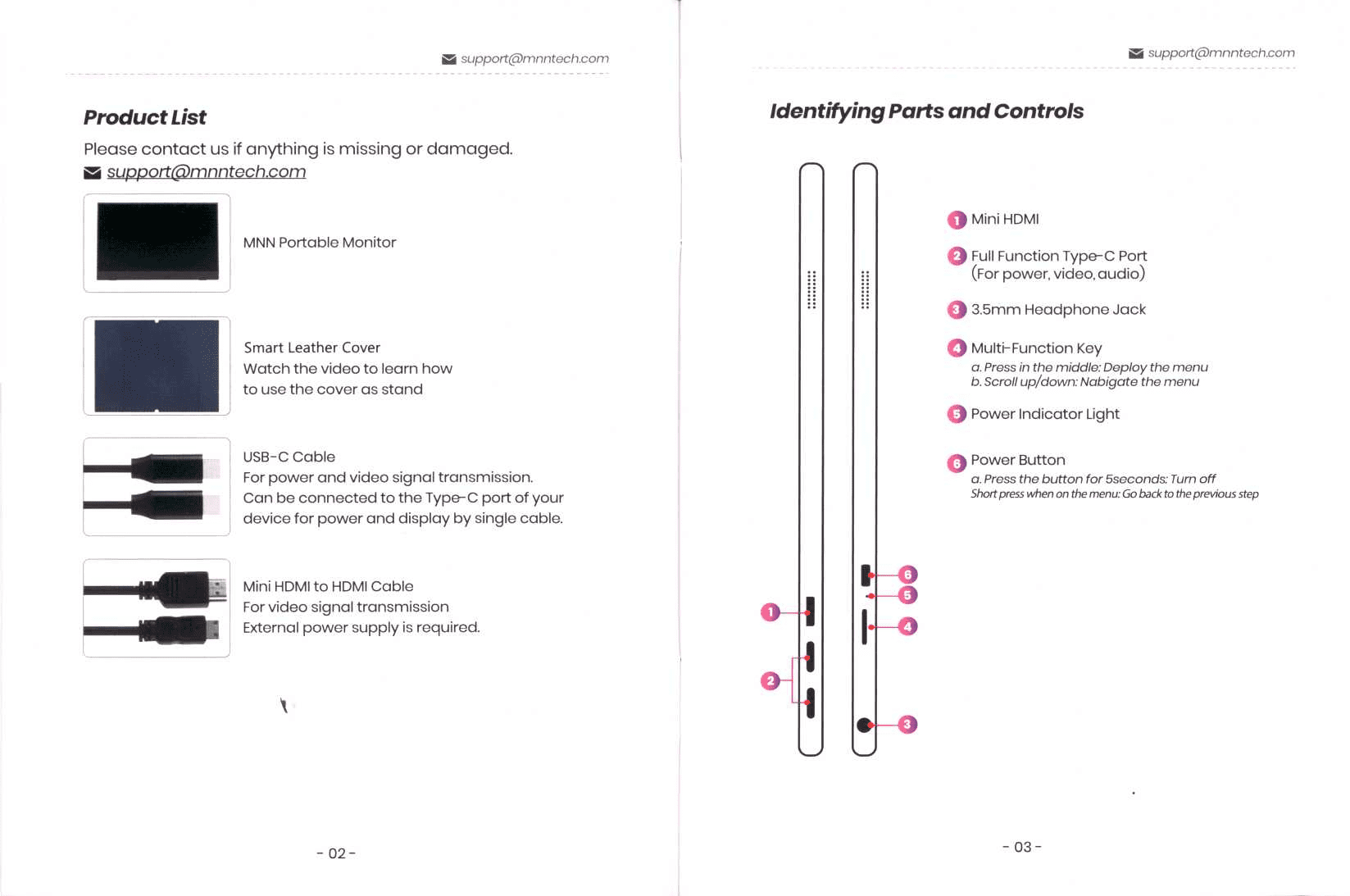
The M156F01 was designed with two full-featured USB-C ports for a reason. Here’s the correct setup:
USB-C Port 1: Connected to a wall charger (power only)
USB-C Port 2 or Mini HDMI: Connected to your laptop, phone, or console (video only)
With this arrangement, the monitor receives stable, independent power from the wall while simultaneously receiving video signal from your device. The two functions no longer compete for bandwidth or power delivery. The flashing stops immediately because the monitor never experiences power starvation.
For phone and Android device connections, the manual is explicit: “Please plug in wall charger to Type-C port to power on the monitor, then plug in USB-C cable connected to phone to another Type-C port.” For laptops with HDMI ports: “HDMI Cable connects: Laptop -> HDMI Cable -> MNN Portable Monitor with Type-C Power.”
Single USB-C Cable Limitations
A single USB-C cable can theoretically carry both power and video. However, the manual makes clear this only works if your source device has robust USB Power Delivery. A single cable is suitable for:
- Laptops with high-output USB-C (MacBook Pro, higher-end gaming laptops)
- iPad with USB-C port (recent iPad Pro and iPad Air models)
- Some high-end Android tablets
For all other devices, single-cable setups will cause flashing. The manual warns: “If the battery level of your laptop is insufficient, please use another Type-C Power cable to power the display separately.” This covers the majority of laptop users.
Even if a single cable works initially, increasing brightness causes more power draw. The manual notes: “When the monitor is connected to phones, if there is no external power supply and the brightness is adjusted to a high value, brightness will be automatically adjusted to 30 because of not enough power supply.” The monitor does have a safety feature—it reduces brightness automatically when power is insufficient—but this results in a dim, unusable display, not a fix.
Device-Specific Power Setup Instructions
Laptop Connection with Separate Power Charger
For laptops with USB-C but poor power delivery:
- Plug a wall charger (USB-C Power Delivery, 18W or higher) into the monitor’s first USB-C port.
- Connect the second USB-C port of the monitor to your laptop’s USB-C port using the included USB-C cable. Or, if your laptop only has HDMI, use an HDMI cable and skip to step 3.
- On your Windows laptop, press Windows Key + P and select “Extend” to enable the external display.
- On a Mac, go to Apple Menu > System Preferences > Displays > Arrangement and select “Extended display.”
- Verify the monitor powers on and stops flashing.
For laptops with HDMI or DisplayPort:
- Connect a wall charger to the monitor’s USB-C port.
- Connect an HDMI cable from your laptop’s HDMI port to the monitor’s Mini HDMI port.
- Or, if your laptop has DisplayPort (like Microsoft Surface Pro), connect a DisplayPort-to-HDMI adapter, then run an HDMI cable to the monitor’s Mini HDMI port. (Contact [email protected] for a free adapter if needed.)
- Set your display mode to Extend in Windows or macOS as described above.
- The monitor should now power on without flashing.
Phone Connection Requiring Wall Charger
Phones cannot power the M156F01 adequately through a single USB-C cable, even recent high-end models. Follow this setup precisely:
- Plug a USB-C wall charger (minimum 18W) into the monitor’s first USB-C port.
- Use the included USB-C cable to connect your Android phone’s USB-C port to the monitor’s second USB-C port.
- Turn on the monitor using the power button on the right edge. The power indicator light should stay steady (not flash).
- On your Android phone, swipe down twice to access Quick Settings, then enable “USB Debugging” or “Display Output” depending on your phone model.
- The phone’s screen should now appear on the monitor.
For iPhones and iPads with Lightning connectors, a Lightning-to-HDMI adapter is required. The process is different: the wall charger powers the adapter itself (through its Lightning port), and an HDMI cable connects the adapter to the monitor’s Mini HDMI port. Contact MNN support for a free Lightning-to-HDMI adapter. iPhone 15 and later models with USB-C can use the dual-port setup described above.
Gaming Console Setup with Type-C Power
For Nintendo Switch:
- Connect the Switch’s original USB-C power charger (the one that came with the console) to the monitor’s first USB-C port. Do not use third-party chargers.
- Connect a USB-C cable from the Switch’s USB-C port to the monitor’s second USB-C port.
- Turn on the monitor and the Switch. The game should appear on the monitor.
- If the display is unstable, restart the Switch and monitor by powering off both devices completely, waiting 10 seconds, then powering on again.
For PlayStation or Xbox:
- Plug a wall charger into the monitor’s USB-C port.
- Connect an HDMI cable from your PS5/PS4/Xbox’s HDMI port to the monitor’s Mini HDMI port.
- Turn on the monitor and console. Video should appear within 2–3 seconds.
- If you see no signal, try a different HDMI cable or restart the console.
Troubleshooting Continued Flashing After Power Fix
Confirming the Wall Charger is Connected Properly
If you’ve added a wall charger but the monitor still flashes, verify the connection:
- Unplug the wall charger from the monitor.
- Inspect the USB-C port on the monitor for debris or bent pins. If you see damage, contact [email protected] for a replacement.
- Plug the charger back in firmly. You should hear or feel a slight click as the connector seats.
- Check the power indicator light on the right edge of the monitor. It should be solid white or blue, not blinking.
- If the indicator is still flashing, the charger may not be making good electrical contact.
Also verify that your wall charger is actually powered on. Some power strips have an on/off switch. Plug the charger into a wall outlet you know is working—try a lamp or phone charger to confirm the outlet has power.
Testing with Multiple Power Adapters
If flashing continues with the wall charger connected, the charger itself may be underpowered or faulty. Test with a different USB-C Power Delivery charger:
- A recent smartphone charger (Apple 20W or higher, Samsung 25W, Google Pixel 18W or higher)
- A laptop charger with USB-C output (most modern laptops have these)
- A portable power bank with USB-C and Power Delivery support
Connect your test charger to the monitor’s USB-C port and leave it plugged in for 30 seconds. If the power indicator light becomes steady and the flashing stops, your original charger was insufficient. Replace it with one rated for 18W or higher.
For Nintendo Switch users specifically, the manual states: “Switch original PD charger and plug it into the Type-C port monitor. Or it may not work if using other chargers.” This means you must use the charger that came with the Switch, not a generic USB-C Power Delivery charger.
When to Replace Cables or Seek Support
If the monitor continues to flash after testing multiple chargers, the issue may be a defective cable or the monitor itself:
Cable problems: The USB-C cable included with the M156F01 is designed to carry both power and video. If the monitor only flashes when using a specific cable, that cable may have an internal break. Try the original cable included in the box. If you’ve lost it, contact [email protected] for a replacement.
HDMI/Mini HDMI cable: For console and laptop connections, a faulty HDMI cable can cause flashing if it doesn’t establish signal properly and the monitor’s power supply resets in response. Test with a different HDMI cable.
When to contact support: If you have confirmed that:
- A wall charger (18W or higher) is connected to the monitor’s USB-C port, AND
- The charger is plugged into a working wall outlet, AND
- The monitor still flashes or restarts continuously
Then contact MNN customer support at [email protected]. Provide your Amazon order number to activate your 2-year warranty. The monitor may have an internal power regulation fault that requires replacement. MNN offers a 365-day money-back guarantee and unlimited 2-year warranty with lifetime customer support.
Also reach out if your USB-C cable is damaged, bent, or broken. A defective cable can cause intermittent power delivery that mimics insufficient power supply. Support can send you a replacement cable at no cost.
FAQ
Why does my MNN M156F01 monitor keep flashing even though I have it connected to my laptop with a USB-C cable?
Your laptop’s USB-C port likely cannot deliver enough power to the monitor while also powering itself. The M156F01 requires 6W of stable power, but most laptops on battery only provide 15–30W total and need to reserve most of that for themselves. Solve this by plugging a USB-C wall charger (18W or higher) into the monitor’s second USB-C port, or use an HDMI cable with a separate charger. The monitor has two full-featured USB-C ports specifically for this dual-power setup.
Can I use my phone charger to power the MNN M156F01 and stop the flashing?
Yes, but only if it’s a USB-C Power Delivery charger rated for at least 18W. Most older phone chargers (5W–10W) are too weak. Modern chargers from Apple (20W+), Samsung (25W), Google (18W), and other brands work well. Connect it to the monitor’s USB-C port, then use a second USB-C cable from your phone to the monitor’s other USB-C port for video. The flashing should stop immediately once the wall charger is connected.
Does the included USB-C cable support both power and video at the same time?
Yes, the included USB-C cable is a full-featured cable that carries both power and video signals. However, it only works well if your source device (laptop, phone, tablet) has strong USB Power Delivery capability. For most phones and laptops, you’ll need to split the functions: one cable for power (from a wall charger) and another for video (from your device). This dual-cable approach eliminates flashing.
I have my Nintendo Switch connected to the MNN M156F01 and it keeps restarting. What should I do?
The Switch cannot provide enough power to the monitor. You must connect the Switch’s original USB-C power charger (the one included with the console) to the monitor’s USB-C port at the same time you connect the Switch’s USB-C port to the monitor’s second USB-C port. Do not use third-party chargers—the Switch’s original charger is required. If restarting continues, power off both devices completely, wait 10 seconds, and power them on again.
My monitor flashes for a few seconds then works fine. Is the wall charger still necessary?
Yes. Intermittent flashing means your device’s power delivery is borderline insufficient. It may work sometimes under light display use (low brightness, simple images) but fail under heavier load (high brightness, complex graphics, gaming). Adding a wall charger ensures stable power in all conditions and prevents future crashes. This is especially important for phones, which have minimal power headroom for external displays.