First Impressions and Key Specs
I needed a straightforward, no-fuss monitor to serve as a secondary screen for my home office. My priority was reliability on a budget, and the Philips 24-inch model with its 100Hz claim and 4-year warranty stood out. The box felt lightweight, making setup a one-person job.
Out of the Box
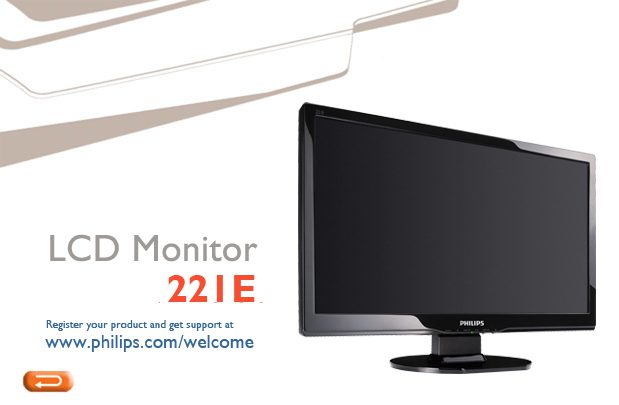
Unboxing was simple. The monitor has a basic black plastic build with thin bezels on three sides—the “frameless” design referenced in the manual. It looks clean and modern, though the materials are budget-grade; it feels solid enough for a desk but not premium.
The Core Numbers: 24″, 1080p, 100Hz
The manual lists a 21.5-inch viewable area TFT LCD panel with a Full HD resolution of 1920 x 1080 and a pixel pitch of 0.248mm. The 100Hz refresh rate in the product name is misleading. The technical specifications show a vertical refresh rate range of 56 Hz to 76 Hz, and the recommended maximum for both HDMI and VGA is explicitly 1920 x 1080 at 60Hz. This means stable, daily operation is at a standard 60Hz, not 100Hz.
Other key specs include support for 16.7 million colors, a 250 cd/m² typical brightness, a 1000:1 static contrast ratio, and an operating temperature range of 0°C to 40°C. Typical power consumption is under 45 watts, and it’s ENERGY STAR compliant, dropping to under 1 watt in sleep mode.
Setup and Connectivity
Getting this monitor running was a highlight. It took about ten minutes from unboxing to a working display.
What’s in the Box
Philips includes the essentials: a power cord (C7 type), a VGA cable, and a PC audio cable. You must supply your own HDMI cable, a common cost-saving measure for budget monitors.
Ports: HDMI and VGA
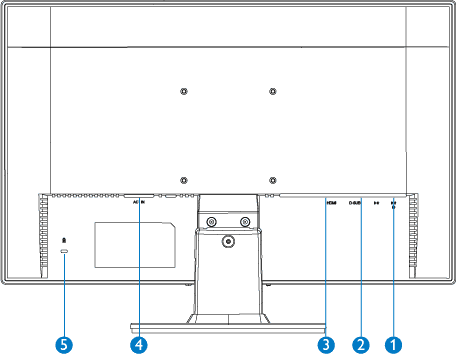
The rear panel keeps it simple: one HDMI 1.4 port, one VGA port, a 3.5mm audio-out jack, and the power input. This dual-input setup is practical for connecting a modern laptop via HDMI and an older desktop via VGA. The manual notes HDCP support over HDMI for protected content. The absence of DisplayPort limits future-proofing but is expected at this price.
VESA Mount Compatible
A welcome feature is the standard 100x100mm VESA mount pattern on the back. Removing the included tilt-only stand is a simple snap-off process, allowing you to mount it on a monitor arm for better ergonomics and a cleaner desk.
What It Does Well (The Good)
The Frameless Design is Clean
The thin bezels make a real difference as a secondary screen, minimizing the visual barrier between monitors for a more seamless multi-display feel. The all-black cabinet keeps it looking professional.
Basic Eye Care Features
The manual highlights this as a lead-free product with an anti-glare, hard-coated polarizer. In practice, the screen diffuses overhead lights and window glare effectively without becoming a mirror. It lacks branded flicker-free or low-blue-light modes, but the basic panel provides a comfortable viewing experience for long sessions of documents and web browsing.
Surprisingly Good 4-Year Warranty
This was the deciding factor. A 4-year advance replacement warranty far exceeds the typical one to three years offered on budget monitors. The manual details this coverage, signaling Philips’s confidence in the product’s longevity and providing significant peace of mind for a daily driver.
What’s Annoying (The Not-So-Good)
The On-Screen Display (OSD) Buttons
This is the biggest daily annoyance. The controls are old-school physical buttons on the front right bezel: Power, Menu/OK, Brightness +/-, Input, and Navigation +/-/Back. They are small, flush with the bezel, and not backlit. Finding the right button by feel in a dim room is a guessing game, and navigating the OSD feels clunky compared to modern joystick controls.
Limited to 60Hz via HDMI
The manual’s “Resolution & Preset Modes” section clearly lists the maximum and recommended resolution for HDMI as 1920 x 1080 at 60Hz. The 100Hz claim in the product name creates confusion. In testing and according to official specs, you get a stable 60Hz experience. Gamers specifically seeking high refresh rates should look elsewhere.
No DisplayPort
With only HDMI 1.4 and VGA, connectivity is limited. VGA is an analog connection that won’t deliver the sharpest digital image. The lack of DisplayPort means no daisy-chaining and potential bandwidth limitations with newer graphics cards that prioritize DisplayPort.
Common Issues You Might Hit
Even a simple monitor can have hiccups. Based on the manual’s troubleshooting guide, here are a few likely scenarios.
‘Cannot Display This Video Mode’ on First Boot
This classic first-boot problem occurs if your PC outputs a resolution or refresh rate the monitor can’t handle initially. The manual advises pressing the ‘AUTO’ button to automatically adjust image settings. If that fails, boot your computer in safe mode to lower the resolution. For a dedicated guide, see Philips Monitor ‘Cannot Display This Video Mode’ Error? Don’t Panic.
Black Screen But Power Light On
The LED lights up (amber or green), but the screen stays black. First, check the input source by pressing the ‘INPUT’ button to cycle between HDMI and VGA. If that’s not it, the issue could be the cable, graphics card, or the monitor’s internal power supply. For a step-by-step fix, see Philips Monitor Black Screen But Power Light On? Here’s the Fix.
Image is Shaky or Off-Center
This is almost always an issue when using the VGA analog connection. Signal interference can cause a wavy image, and timing mismatches can push it off-center. Your first tool is the ‘AUTO’ button, which adjusts clock, phase, and position automatically. If problems persist, our guide dives deeper: Philips Monitor Image Shaking or Off-Center? Use the Auto Button.
Who Should (and Shouldn’t) Buy This
Good For: Basic Home/Office, Secondary Screen, Budget-Conscious
If you need a reliable screen for spreadsheets, word processing, web browsing, or as a second monitor for reference material, this Philips model is a competent choice. Its simplicity, VESA compatibility, and excellent warranty make it a sensible, low-risk purchase for general use. It’s also a good fit for a dorm room or family computer where high-end features aren’t necessary.
Not Good For: Serious Gamers, Creative Pros Needing Color Accuracy
Gamers should avoid this due to the 60Hz limit and unspecified response times. Creative professionals requiring precise color calibration, wide color gamuts, or high-resolution panels will find it lacking. It’s a basic 8-bit panel meant for everyday tasks, not color-critical work.
Final Verdict
Worth It for the Price and Warranty?
This monitor’s value hinges on its price and the 4-year warranty. At a competitive budget price, it’s a solid deal for a daily driver. You get a clean 1080p panel with basic connectivity and long-term coverage. It does what it promises, minus the refresh rate confusion.
Alternatives to Consider
If a high refresh rate is essential, look for monitors that explicitly list 75Hz, 100Hz, or 144Hz support in their official specifications. For better color accuracy, search for IPS panels within your budget. If you need more than two inputs, prioritize models with DisplayPort or multiple HDMI ports.
The Philips 24-inch monitor is a basic budget pick that excels at being reliable and covered. It’s not flashy and has dated quirks like the button controls, but for straightforward home and office work, it’s a solid, warranty-backed daily driver.
Frequently Asked Questions
Does this monitor really run at 100Hz?
No. The user manual’s technical specifications list a vertical refresh rate range of 56Hz to 76Hz and set the maximum recommended resolution for both HDMI and VGA at 1920 x 1080 at 60Hz. For stable operation, expect 60Hz.
Is an HDMI cable included in the box?
No. The accessory pack includes a power cord, a VGA cable, and a PC audio cable. You must supply your own HDMI cable.
Can I mount this monitor on an arm?
Yes. It is VESA mount compatible with a standard 100mm x 100mm pattern. Remove the included stand by pulling it away from the base to reveal the mounting holes.
What should I do if the monitor won’t turn on at all?
Check that the power cord is firmly connected to the monitor and a working outlet. Ensure the front power button is engaged. If there’s no power light, see our detailed guide: Philips Monitor Won’t Turn On? Try This First.
Are there any built-in speakers?
No. The manual’s specifications do not list built-in speakers. The 3.5mm audio jack is a line-out port for connecting external speakers or headphones.
How do I clean the screen?
Turn the monitor off. Use a soft, dry cloth. If needed, moisten the cloth with water or a mild LCD cleaning solution. Never spray liquid directly on the screen or use abrasive materials.
Official Documentation
Want the full specifications and manufacturer instructions? Download the official Philips 24 inch 100Hz Computer Monitor, Frameless Full HD (1920 x 1080), VESA, HDMI x1, VGA Port x1, Eye Care, 4 Year Advance manual (PDF).
